 METROLORE Docs
- Docs
- Gameplay Camera
- Director tools
M2Line M2 · Gameplay CameraView in store →
Director tools
These tools are in the studio (Enter) for press crews and directors. They are made for server trailers and film work: what you set only changes your own screen, never the other players'.
#Scene
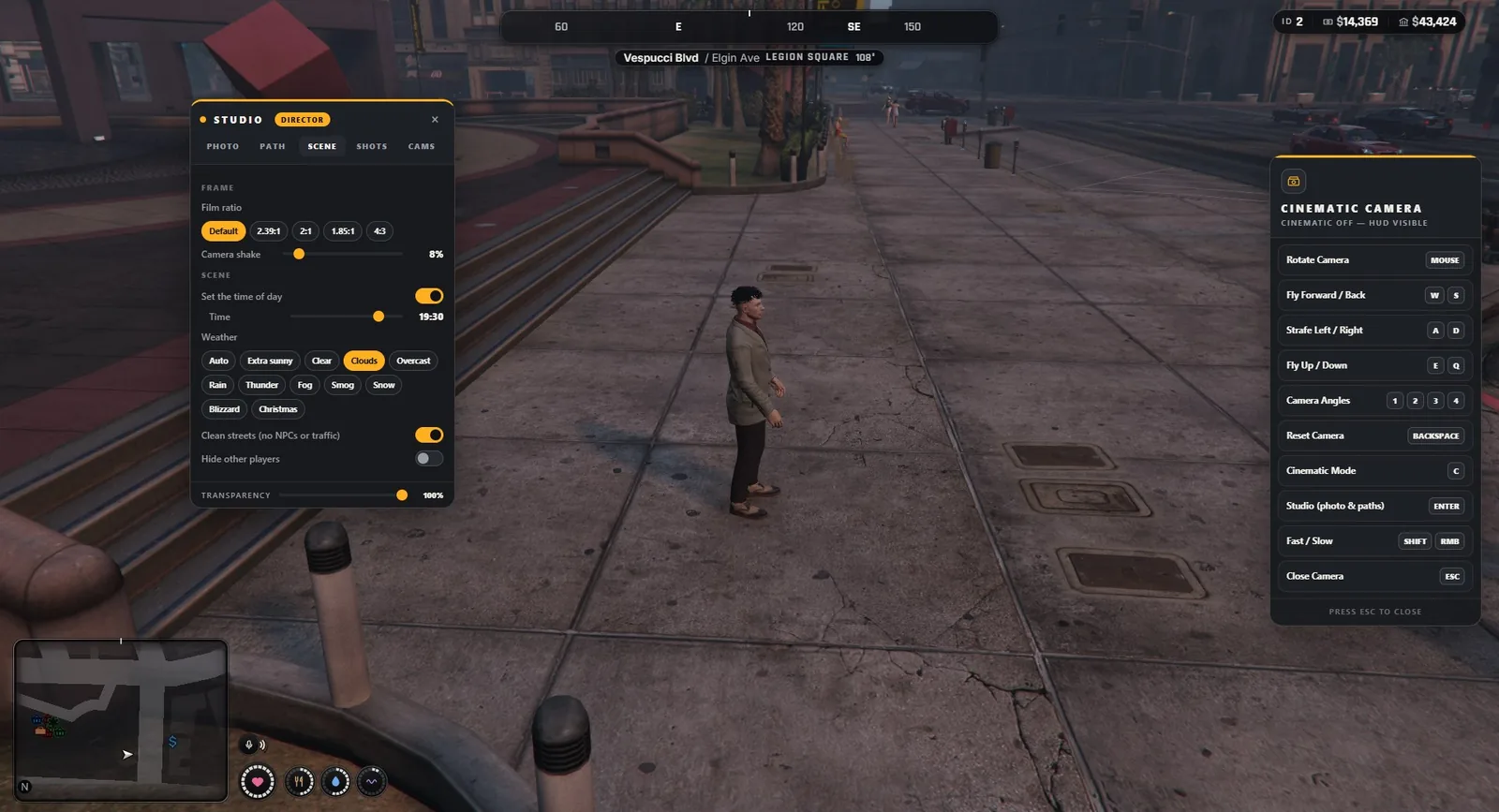
The Scene tab has a Frame part (press crews and directors) and a Scene part (directors).
Frame
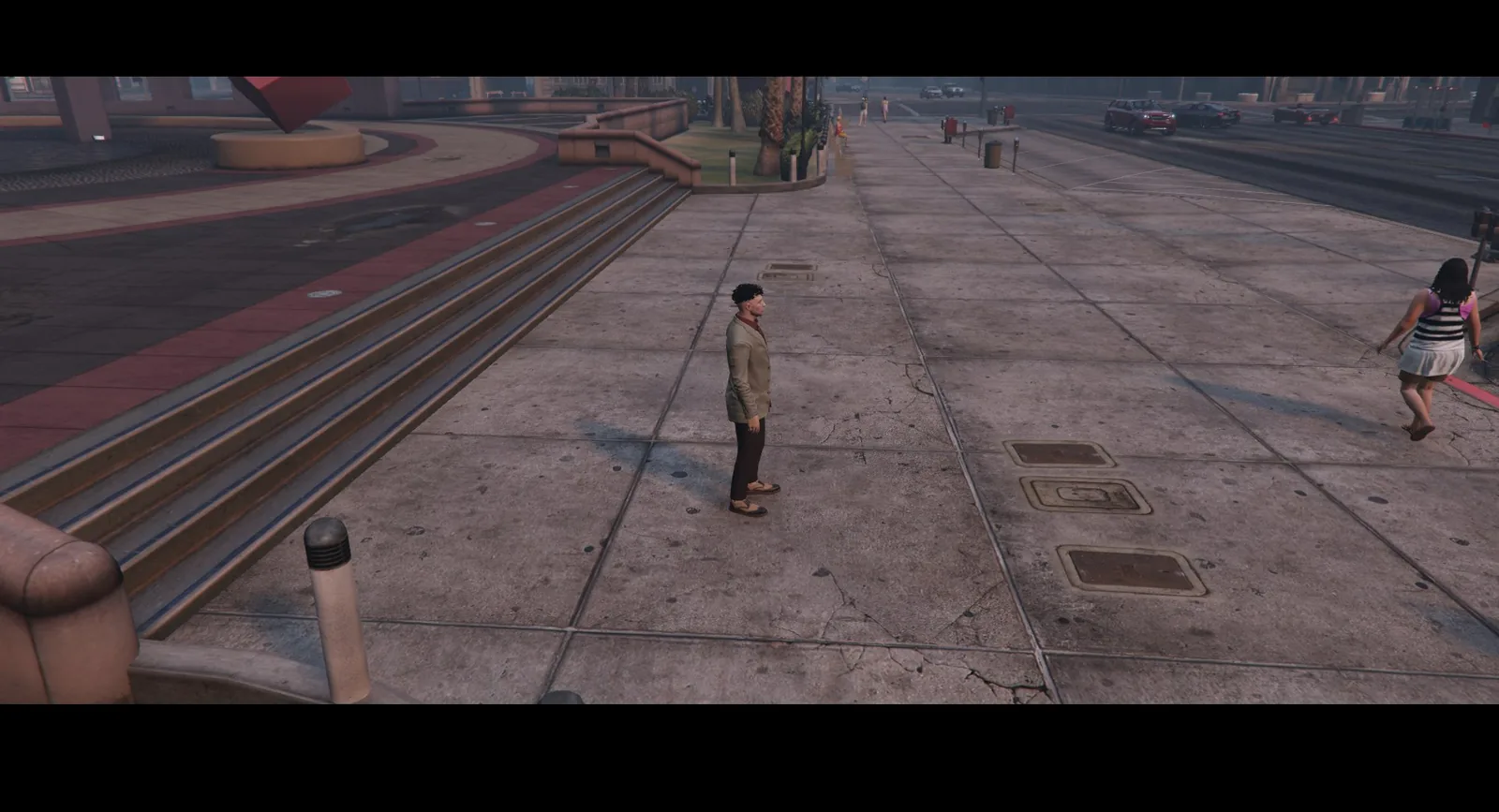
- Film ratio: Default, 2.39:1, 2:1, 1.85:1 or 4:3. The black bars follow the ratio on any screen size and show in cinematic mode.
- Camera shake: from still to a strong handheld shake.
Scene (directors)
- Set the time of day and a time slider.
- Weather: Auto, or one of the game's weather types.
- Clean streets: removes pedestrians and traffic around you. It only removes local ambient entities, never players, script entities or vehicles with a player inside.
- Hide other players.
A weather script such as qb-weathersync is paused while the time or the weather is overridden. Pausing it sets its weather to clear. The scene returns to normal when the camera closes.
A saved path remembers the time and weather that were set when it was saved, and brings them back when it plays.
#Shots
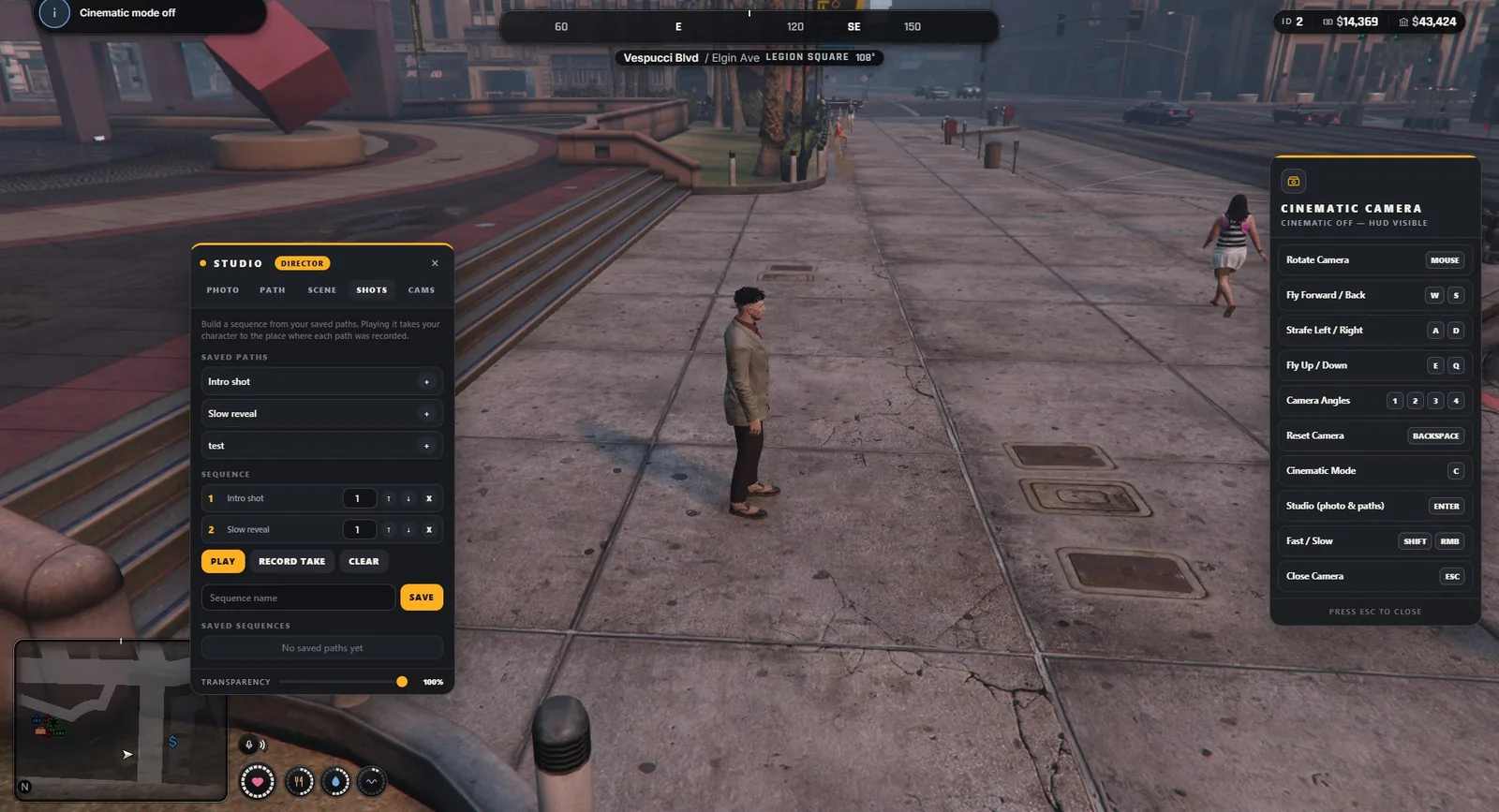
The Shots tab builds a sequence out of your saved paths.
- Save two or more paths on the Path tab.
- On Shots, press + next to a saved path to add it to the sequence.
- Set how many seconds the camera holds after each shot, and move shots up or down.
- Press Play.
For each shot the screen fades, your character is taken to the place where the path was recorded, the time and weather are set, and the path plays. This lets you film shots all over the map in one go. Press ESC to stop.
Sequences are saved by name, on your own computer. You must stand outside a vehicle to play a sequence.
#Record take
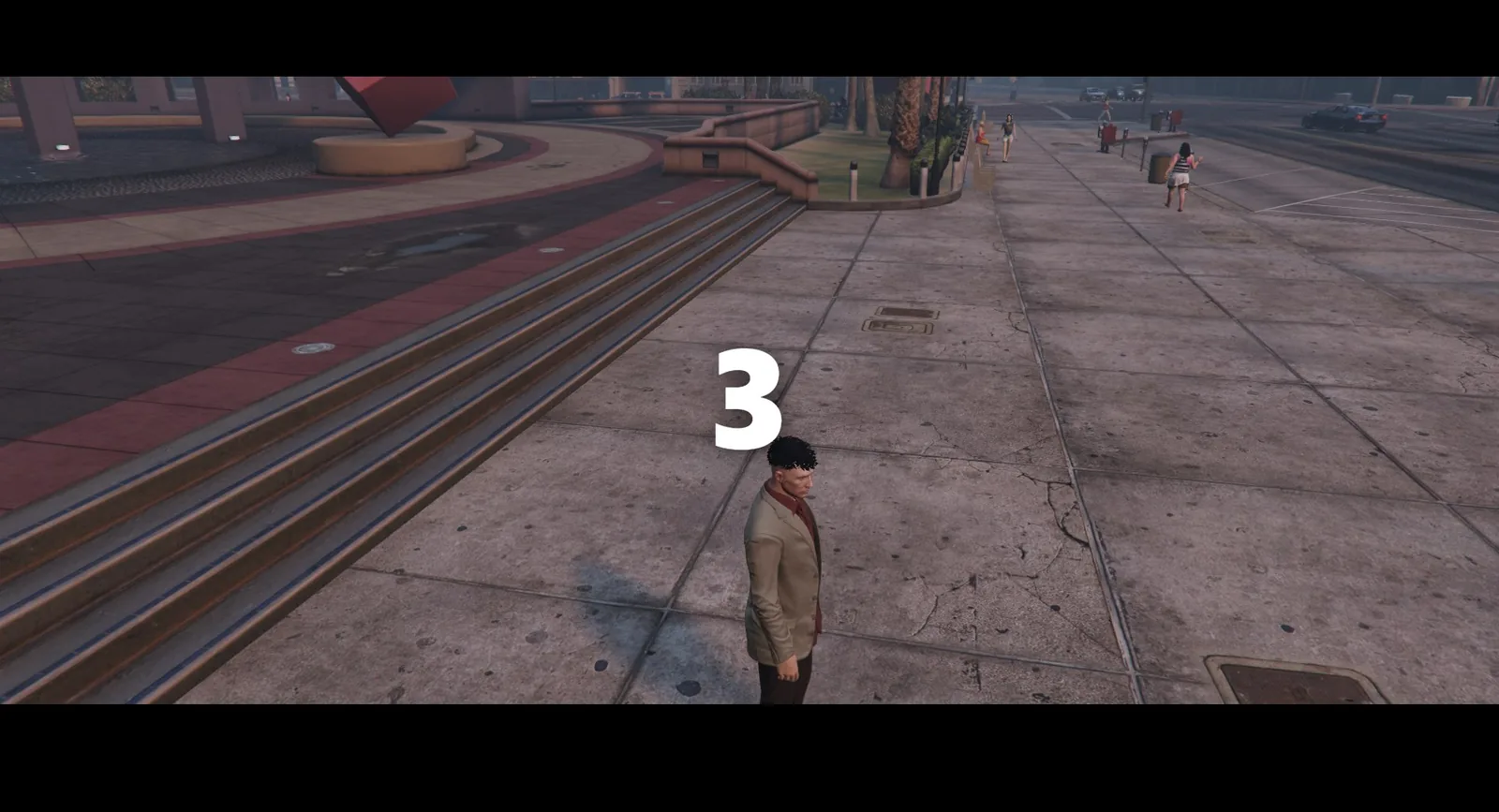
Record take is on the Path tab and on the Shots tab. It counts down (5, 4, 3, 2, 1), hides the whole interface and plays the path or sequence, then keeps rolling for two seconds. The countdown and the interface are gone before the take starts, so nothing of them ends up in your footage.
The resource does not record a video. Start your recording software (OBS, NVIDIA ShadowPlay or similar) first, then press Record take. The count lengths are Config.Studio.RecordCountdown and RecordTail.
#Follow a moving target
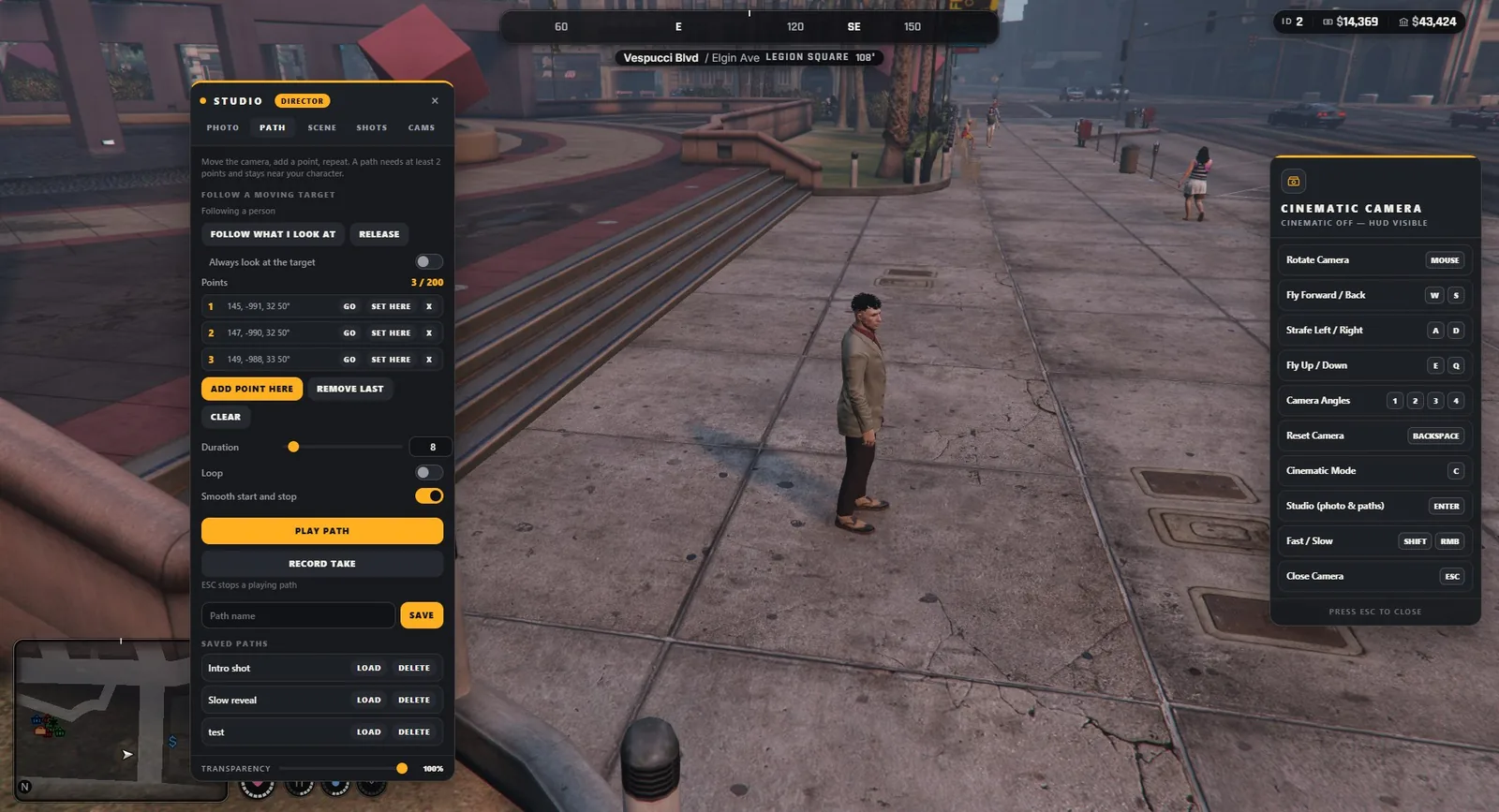
Aim the camera at a vehicle or a person, open the studio and press Follow what I look at on the Path tab. The camera now moves with the target. If the target turns, the camera turns around it. Always look at the target keeps the target in the middle of the picture; Release lets it go.
Points you add while following are stored relative to the target. A path made this way plays as a tracking shot: the camera keeps its place next to the target while the target drives. While following, the distance limit of your role is measured from the target, so the camera stays near the target instead of your character.
By default there is no limit on how far the target can go from your character. A server owner can set one for a role with followMaxDistance (see Roles and permissions). The shot ends when the target goes past that limit or disappears from the game world, for example when the game stops loading a far away vehicle. If the camera is then too far from your character, it cuts back to the character.
You cannot follow the vehicle you are sitting in. Follow another vehicle or person.
Such a path needs a target again when it is loaded, and it cannot be part of a shot sequence, because a target is not tied to a place.