 METROLORE Docs
- Docs
- Handling Editor
- Using the editor
M1Line M1 · Handling EditorView in store →
Using the editor
#Open it
Sit in the driver seat and type /handle (or /mlrhand). You need permission, see Permissions.
#The panel
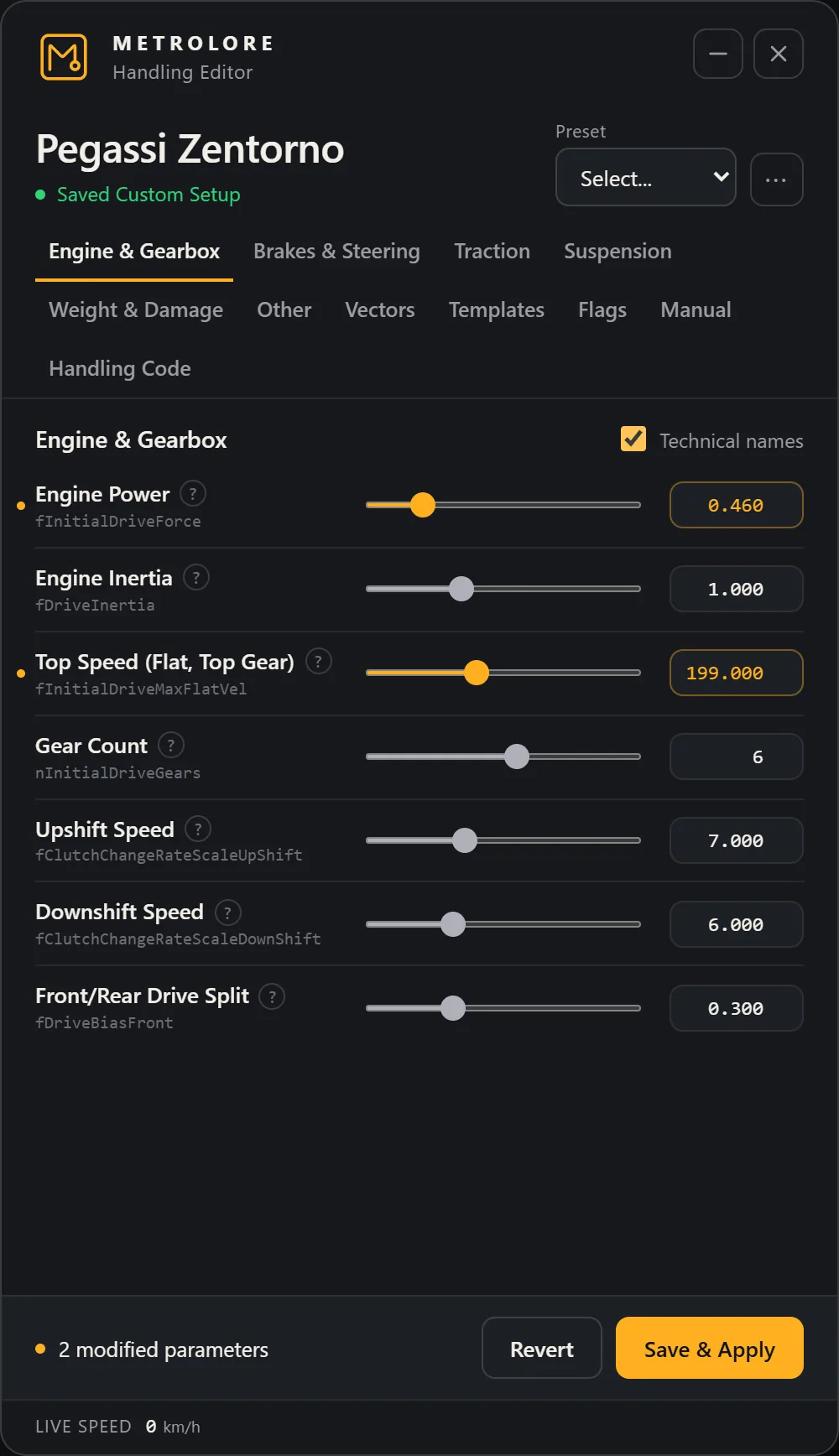
- Header: vehicle name, whether a saved setup exists, the Preset menu and the
...menu (Delete Saved). - Tabs: every handling group. Templates, Flags, Manual and Handling Code are at the end.
- Rows: name, slider, value. Changed rows show an amber dot and amber value.
- Technical names: shows the internal field names such as
fInitialDriveForce. - Footer: how many parameters you modified, Revert and Save & Apply.
- Live speed is shown at the bottom.
#Typical workflow
- Move sliders or type values. Changes apply to the vehicle immediately and only for you until you save.
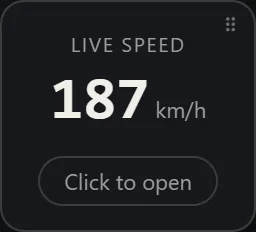
- Test drive. Use the minimize button to shrink the panel to a speed box and click it to reopen.
Escalso minimizes. - Save & Apply stores the setup and applies it for every player.
- Revert goes back to the original values of the vehicle.
...> Delete Saved removes the saved setup (a vehicle that is already spawned keeps its current values until it respawns).
#Warnings
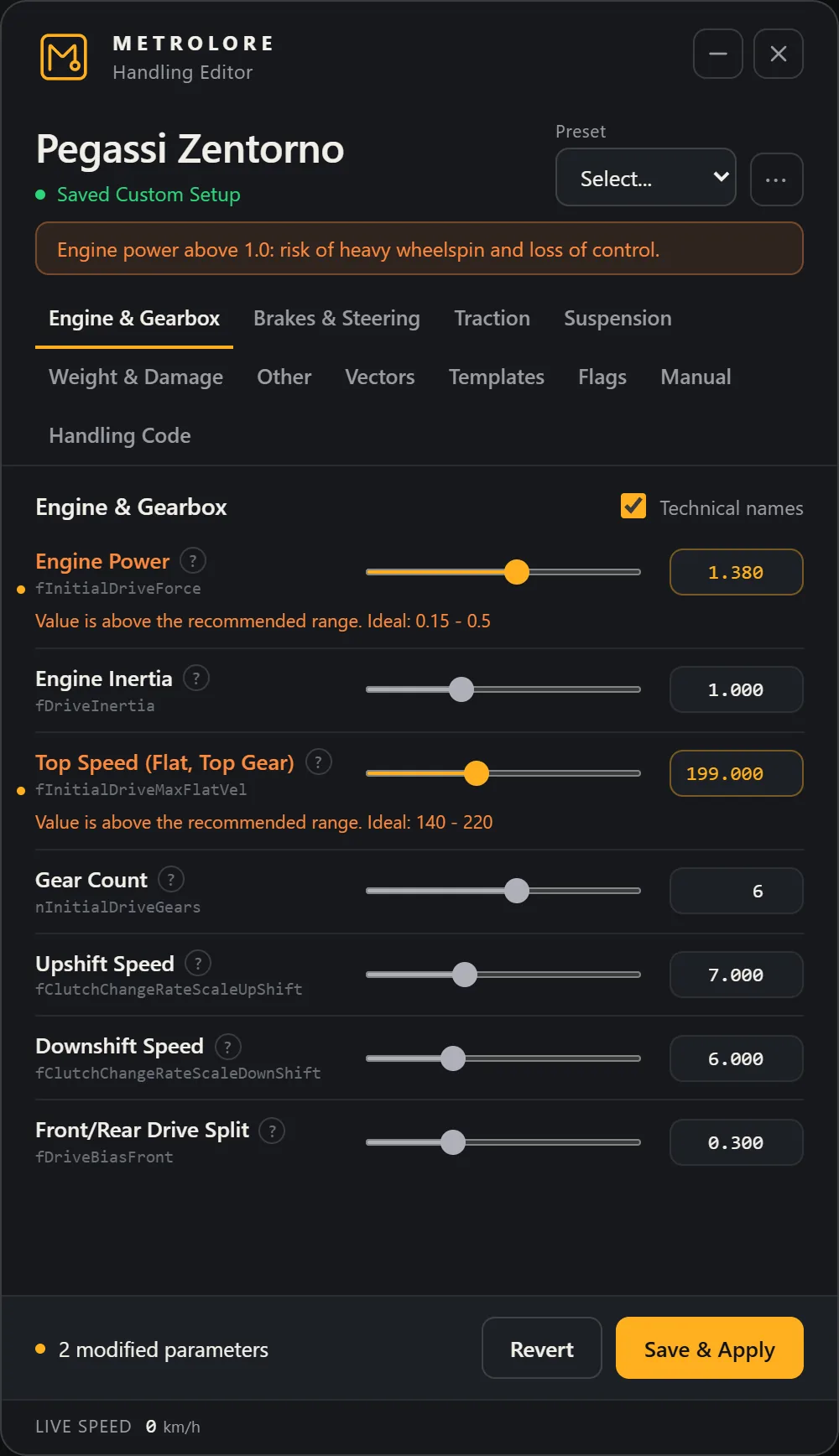
A value outside the recommended range is allowed but shown in orange with the ideal range under the row. Values outside the hard limits are refused.
#Templates
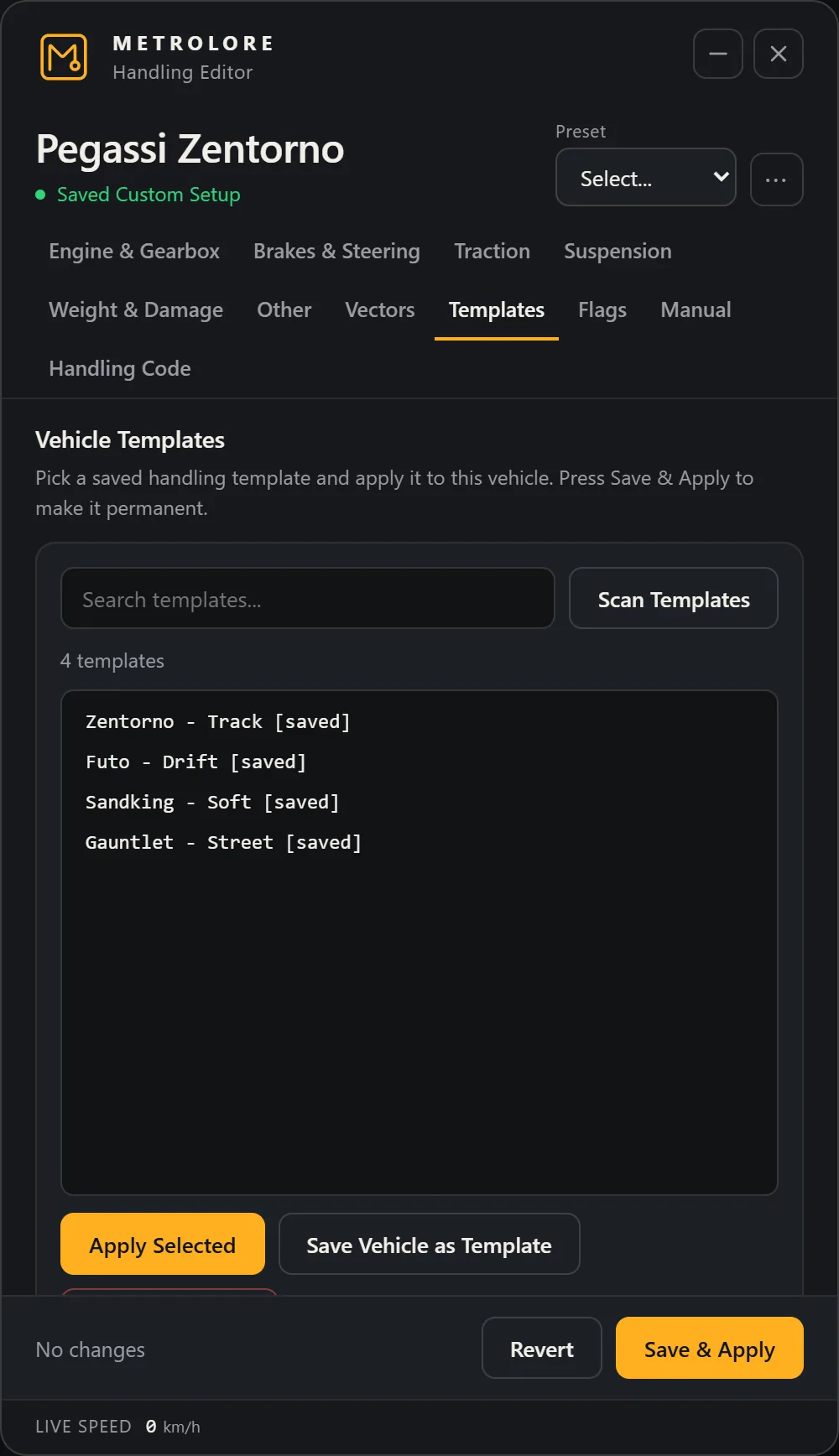
- Save Vehicle as Template stores the current values under the vehicle name.
- Select a template and Apply Selected to use it on the vehicle you are in. Then save to make it permanent.
- Scan Templates imports templates from the folders and resources set in the config.
#Flags and manual fields
Flag values are hexadecimal and can break a vehicle if wrong. Use them only if you know what they do. Manual lets you set any other handling field by name.
#Export
Handling Code generates a handling.meta item from the current values so you can copy it into a vehicle pack.